C.A. | Examples
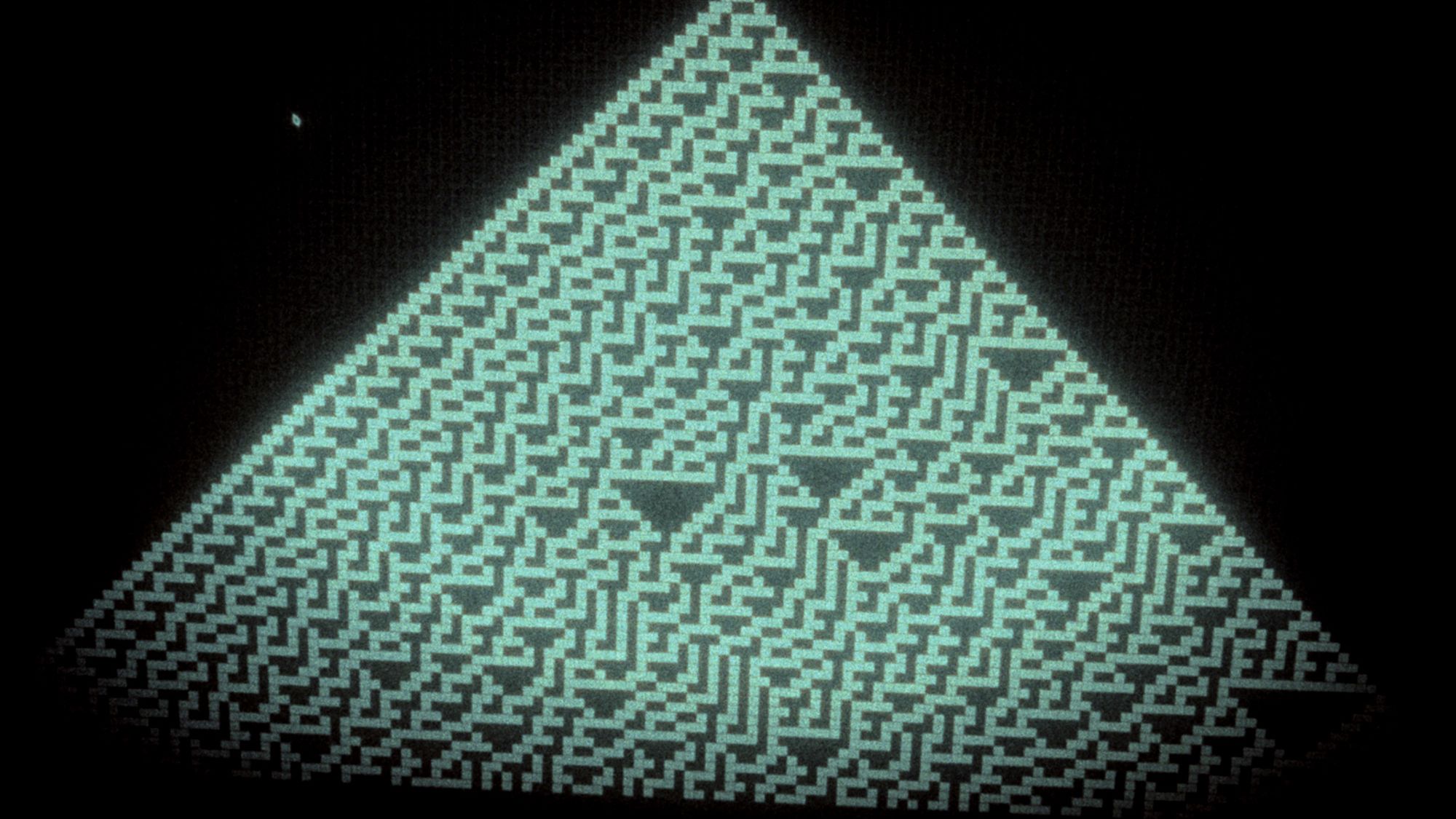
A lightweight Python implementation of diverse Cellular Automata algorithms, designed as a clear and accessible resource for educational purposes.
CLUI CLUI
it was a side project I did for my own needs
Application Overview
| Property | Current implementation |
|---|---|
| Application | CLUI |
| Version | 0.1.3 |
| Bundle identifier | `com.clui.desktop` |
| Desktop runtime | Tauri 2.11 |
| Frontend | React 19.2.4 and TypeScript 5.9 |
| Build system | Vite 6.4 |
| Primary platform | macOS |
| Window mode | fullscreen for the main window |
| Layout engine | FlexLayout React 0.8.19 |
| Default interface | Hardware, terminal, network, filesystem, and virtual keyboard panels |
| Persistence | Browser `localStorage` plus native filesystem export |
| Native backend | Rust 2021 |
| Source size | Approximately 9,286 lines across React, TypeScript, Rust, and CSS |
**CLUI** stands for **Command Line User Interface**. It's a terminal-first desktop workspace for macOS. You can run real shell sessions, arrange tools in flexible panels, monitor your Mac, browse files, edit code and save the whole layout to come back to later.
Why I built it
I spend a lot of my day in the terminal, for development, installations and hardware experiments. Over time my screen fills up with scattered terminal windows, Activity Monitor, Finder, an editor and a browser tab. Everything I need is there, but it's fragmented and noisy.
CLUI is my answer to that. Instead of opening a pile of unrelated utility windows, you build a workspace for a specific task and return to the same arrangement later. The command line stays at the center. CLUI just gives it structure and a calmer interface.
What's inside
CLUI uses xterm.js, the terminal component behind Visual Studio Code. It connects xterm.js to native terminal sessions (PTYs) through a Rust and Tauri backend. Around the terminal you can place dockable widgets:[1]
- **Terminal:** independent native shells per tab, scrollback restored after restart, WebGL rendering, configurable fonts and a monochrome mode.[2]
- **Hardware:** OS and uptime, CPU history and per-core frequencies, memory, swap, disk space and a sortable list of top processes.[2]
- **Network:** online status, public IP, latency, upload and download rates, traffic graphs and a live Three.js globe.[2]
- **Filesystem:** a native file browser with a tree view, list and icon views, keyboard navigation, Reveal in Finder, and floating previews for images, audio, video, PDF and text.[3]
- **Editor:** the Monaco editor from VS Code, with load, save, Save As and Prettier formatting.[3]
- **Virtual Keyboard:** sends keys to the active terminal, useful for touch setups, installations and demos.[3]
- **World Clock, Weather and Web Viewer:** time zones, OpenWeatherMap conditions and embedded websites.[3]
- **MacTop:** real-time Apple Silicon metrics through the `mactop` utility.[3]
A layout that adapts to the task
Every region is a tabset and every widget is a tab. You can drag tabs between groups, split panels by dropping a tab on an edge, resize with splitters or maximize a single region. For a quick start there are grid presets: 2, 3 and 4 columns, plus twelve bento layouts such as Shokado, Makunouchi, Jubako, Ma and Dashboard Bento.
A workspace saves the full panel arrangement. You can name it, switch between workspaces, reset one, or export it as a portable `.workspace.json` file and import it later.
Settings apply immediately. You can pick a dark, light or system theme, scale the interface from 80% to 140%, auto-hide the bottom bar, and choose terminal fonts such as IBM Plex Mono, Handjet or Geist Pixel. The terminal and the editor each have their own monochrome mode, which I use for clean screenshots and presentation work.[3]
Shortcuts worth knowing
| Shortcut | Action |
|---|---|
| ⌘N | Add a new panel |
| ⌘⇧N | Open a new terminal |
| ⌘W | Close the active tab |
| ⌘S | Save in the Editor |
Installation
With Homebrew:
```bash
brew tap angelkaragiozov/clui
brew install --cask clui
```
Or download the `.dmg` from the latest GitHub release and drag CLUI into Applications. Builds are distributed outside the Mac App Store. If macOS shows a warning, right-click the app in Finder and choose “Open”. Only do this for builds from the official release page.
Download CLUI for macOS → https://github.com/angelkaragiozov/clui/releases/latest
What's next
CLUI is in active development. My aim is to keep the terminal fast and text-first, while making it easier to structure, scan and use every day. If you live in the command line, give it a try and tell me what your ideal workspace looks like.
Rust rewrite